
Start with the existing ad
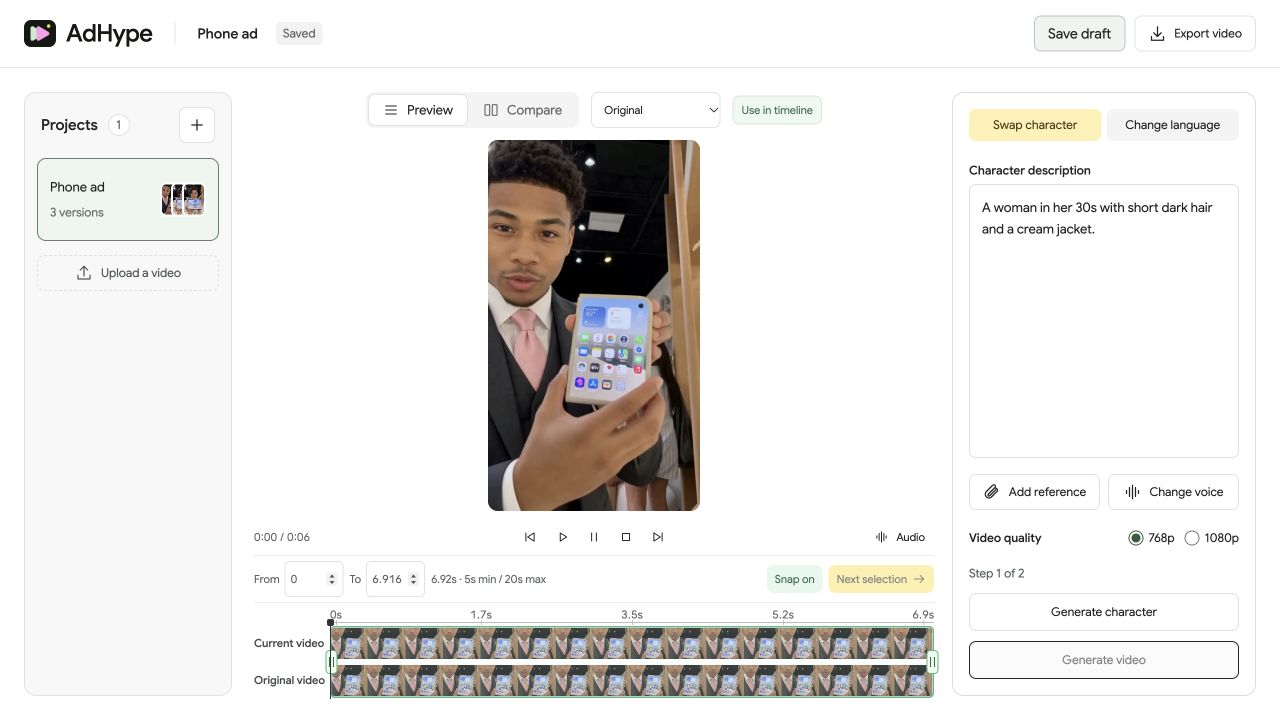
Create a project and upload video you own or have permission to edit. In this guide, we use the phone ad. Choose a 5–20 second section where the face and product are clear. Each continuous shot must be no longer than 15 seconds. A hand crossing the face or a sudden camera cut makes the result harder to evaluate.
Describe the character
Open Swap character. Write a specific description, such as “A woman in her 30s with short dark hair and a cream jacket.” Add a reference image if you have permission to use it. Describe the new presenter's appearance, including the details you want to see in the preview image.
Review the character image
Generate character creates a still first. Check the face, hairstyle, clothing and the hand holding the phone. If a detail is wrong, edit the description and generate another character image. This is the point to settle the appearance before creating a video.
Generate and compare
Choose the video quality, then select Generate video. When it is ready, use Compare and the timeline controls to play the original and edited video together. Watch the whole section, including the first and last frames, before exporting.
Before you export
- The face stays consistent during head turns.
- The phone, fingers and background still look plausible.
- The cut back to unchanged video does not introduce an unwanted jump.
Does a character swap change only the face?
It can change the broader appearance of the person, including hair and clothing. Review the full frame rather than checking only the face.
Read the walkthrough notes
Start with a video ad you already have. Create a project, name it Phone ad, and upload your clip. Choose video with a clear face and a visible product.
Open Swap character. Describe who you want to see. Here, we are asking for a woman in her thirties with short dark hair and a cream jacket.
Generate the character image first. Look closely at the face, clothing, hands and phone. Adjust the description if anything needs another pass.
Once the image looks right, generate the video. Open Compare and use the timeline to review both versions together. Check the full section before you export.