
Choose the goal
If the new presenter needs a different voice in the same language, choose Change voice. If the audience needs the message in another language, choose Change language. You can plan both, but review each result before moving to the next edit.
Preview a voice
In Swap character, open Change voice. Original voice is selected by default. Filter the list and use the play button to listen. Pause and resume a sample without losing your place. Selecting a voice does not immediately generate a new video.
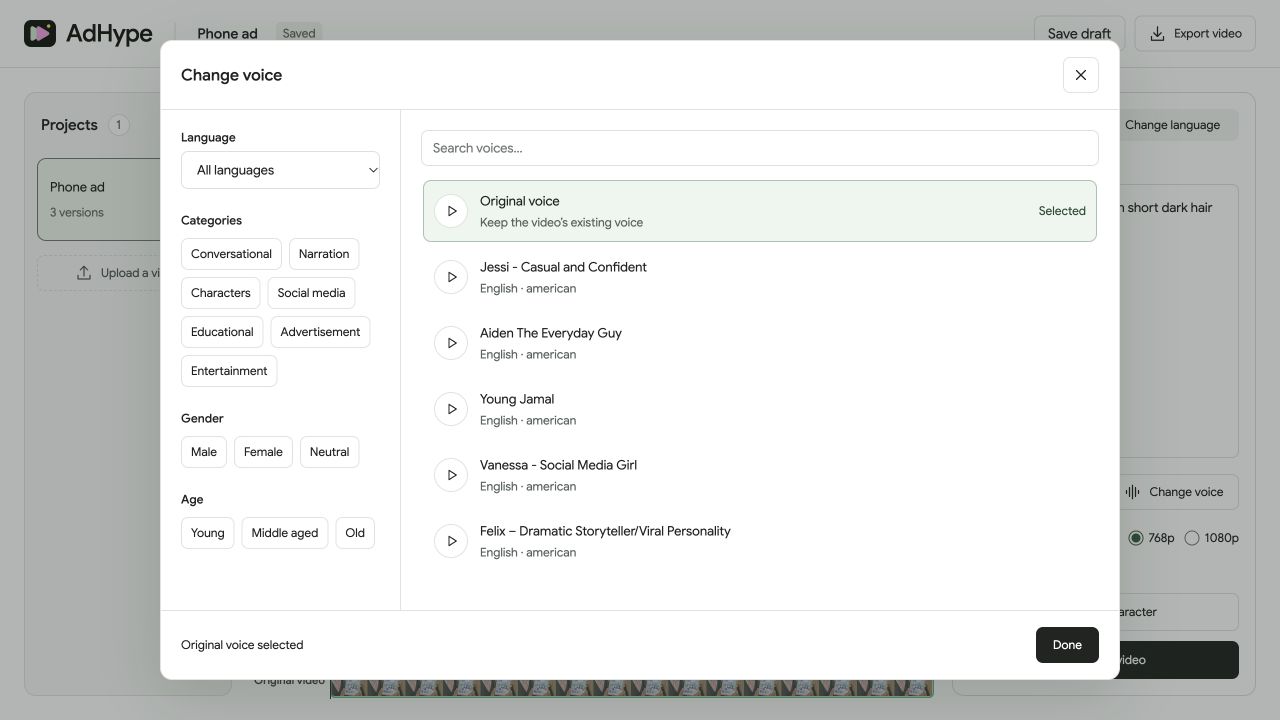
Apply the selected voice
When the character video is generated, the selected voice is applied to its audio track and combined with that video. Check pacing, pronunciation and tone. A voice that sounds good in a short sample may not suit your complete ad.
Translate when language is the goal
For translation, choose a completed video and open Change language. Pick the destination language and generate a new version. Listen for accurate meaning as well as a voice that fits the presenter.
Before you export
- The chosen action matches voice change or translation.
- The voice fits the presenter and message.
- Names, numbers and pacing are correct in the full clip.
Does selecting a Spanish voice translate English speech?
No. Use Change language to translate the speech. The voice picker helps choose vocal identity; its language filter is not a translation command.
Read the walkthrough notes
Changing a voice is different from translating a video. Choose the workflow based on what you need the audience to hear.
In Swap character, open Change voice. Original voice is selected by default. Play a sample, pause it, and resume from the same place.
A selected voice is applied to the generated character video’s audio. Review the full track for pacing, pronunciation and tone.
To change the spoken language, select a completed video and use Change language instead. Choose a destination language and review the new translated version.