
Select the completed result
Open the project and choose the translated video from Saved results. Check its language label. A still image cannot show speech timing, so make sure the selected result is a finished video.
Open Compare
Open Compare to place the original beside the selected video. Use Play, Pause and Stop below the previews to control both together.
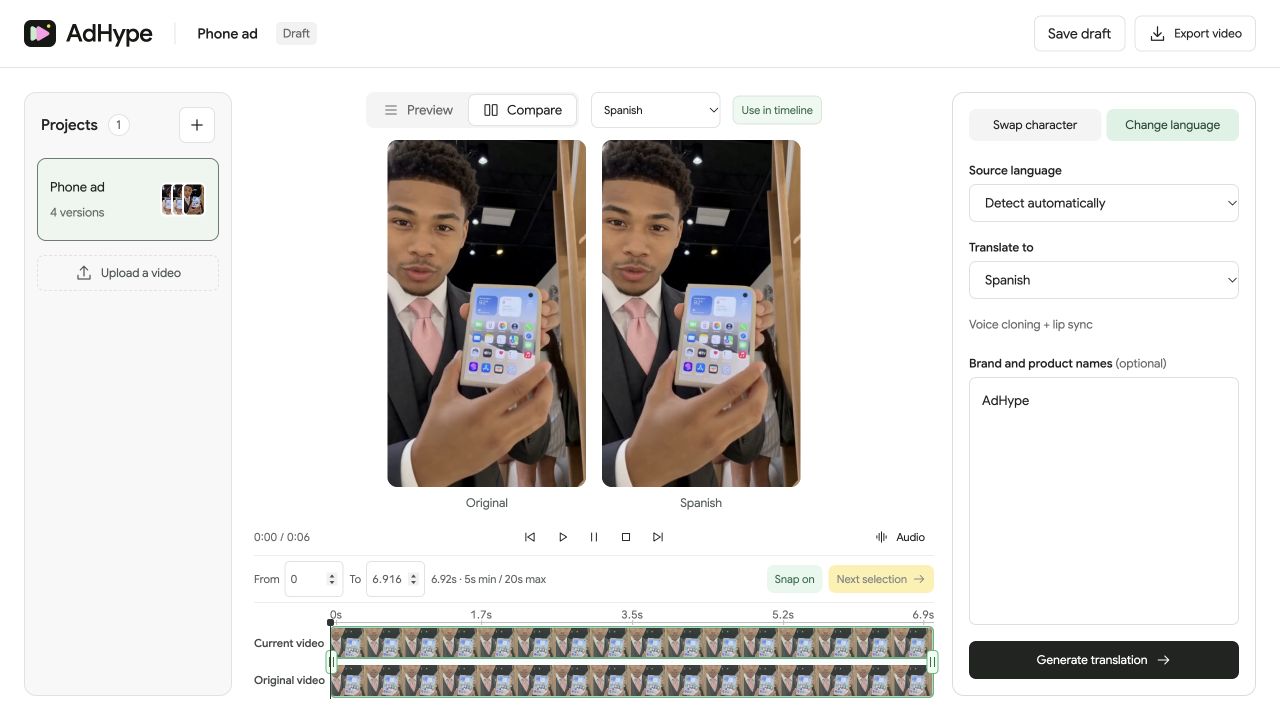
Review the same moment
Scrub to a pause, a product gesture or the call to action. Both previews follow the timeline. Listen to the current result while the original remains muted, so two audio tracks do not compete for attention.
Decide what needs revision
If the meaning is wrong, check the brand and product keyterms and ask a fluent reviewer to identify the mistranslation. If the source speech is unclear, improve the source before trying again. Export the approved result and keep the original available for future language versions.
Before you export
- The selected result is the intended language version.
- The original and current previews follow the same time position.
- The edited audio is audible without overlapping source audio.
Why is the original muted in Compare?
The current result supplies the audio while the original provides a visual reference. That prevents two soundtracks from playing over each other.
Read the walkthrough notes
Choose the completed localized version from Saved results and check its language label. Keep the original as your reference.
Open Compare. The original and the selected result sit side by side, controlled by the same timeline.
Play both together, or scrub to a gesture, pause or call to action. The original stays muted so you can hear the edited result clearly.
Decide whether a problem comes from the source, translation or timing. Keep the approved export and the original available for the next language version.