
Map the shots
Watch the source and note cuts, camera changes and presenter appearances. Plan sections around those changes. A selection can be up to 20 seconds, but a continuous shot must stay within the 15-second provider limit. A shorter clean section is easier to review.
Set the character direction
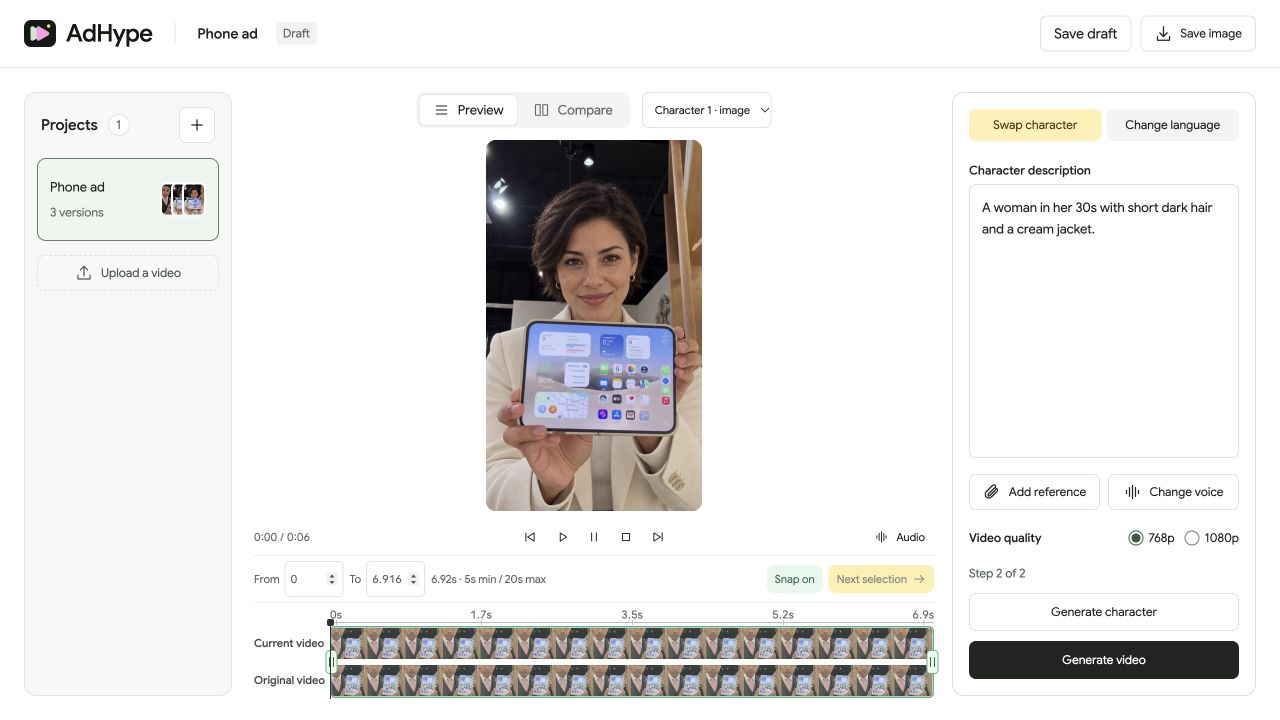
Create a character still for the first section. Keep the description consistent across later work and use an existing character image as your basis when you want to preserve the same look. Check the face shape, hairstyle and clothing in each new still before generating its section.
Move to the next selection
After reviewing one section, use Next selection to move along the timeline. Snapping helps the handles meet existing boundaries. If the final remainder is shorter than five seconds, the next selection overlaps the preceding section to meet the minimum.
Review joins and export
Watch the assembled result from beginning to end. Look for changes in face shape, jacket color, lighting or scale at each join. Gaps retain the original video. When sections overlap, the later applied choice replaces that interval.
Before you export
- Adjacent section boundaries meet where intended.
- The final short remainder is covered.
- The character looks consistent at every join.
Can one generation replace a five-minute video?
No. Upload length and generation length are different. Character-video generation uses selected 5–20 second intervals that can be assembled in the timeline.
Read the walkthrough notes
For a longer ad, plan the sections before generating. Note the shot changes and choose clear boundaries in the timeline.
Create a character image that sets the appearance. Keep the description consistent as you work through the next sections.
Next selection moves you forward. Snapping helps adjacent boundaries meet. A final section shorter than five seconds needs some overlap with the previous section.
Review the joins in the assembled video. Watch for changes in the face, clothing or lighting. Export only after the full sequence looks consistent.