
Find the section
Play the original once, then pause at the start of the part you want to change. Scrub with the timeline to find the first frame you want to replace. Use that moment as the start of your selection.
Set the boundaries
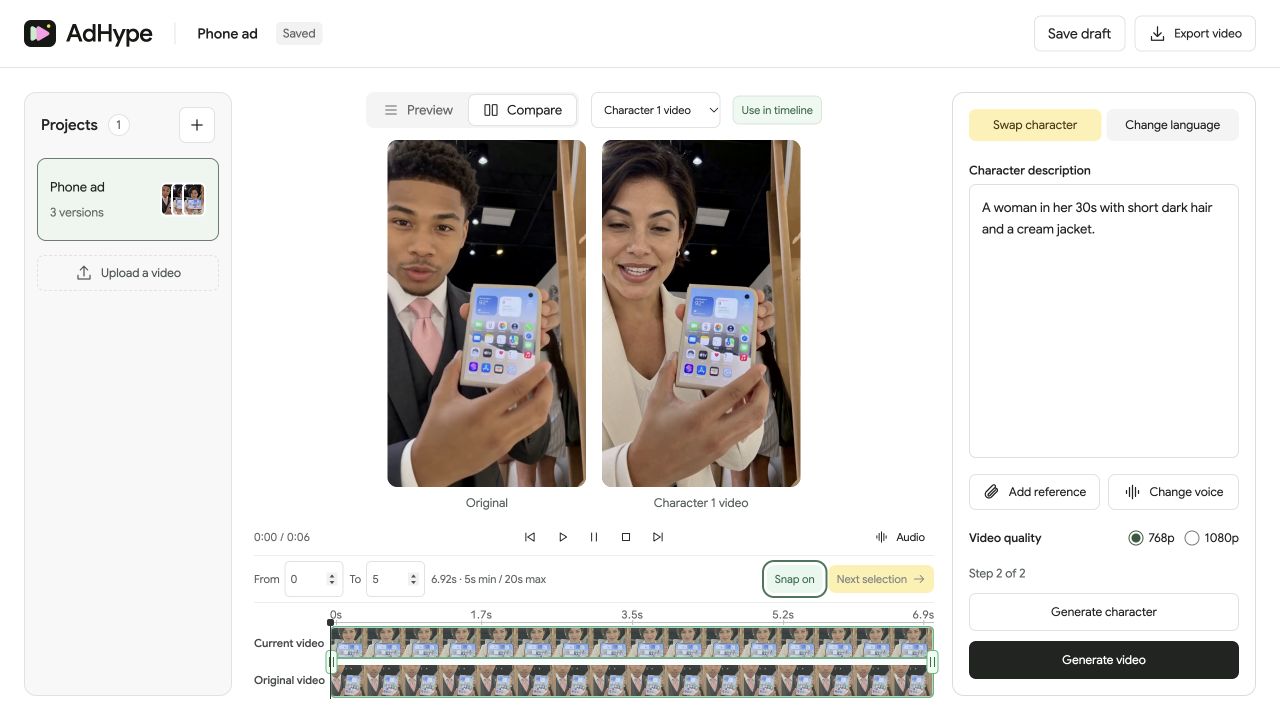
Drag the selection handles or enter the From and To values. Select at least 5 seconds and no more than 20 seconds per character-video generation. Keep each continuous shot within the 15-second shot limit. Choose boundaries that avoid cutting a gesture in half.
Create the replacement
Describe the new character and generate the still. When you are happy with the still, generate the selected video section. Review its beginning and end as carefully as its middle; those frames connect to the untouched video.
Check the assembly
The current timeline combines edited sections with the original video in the gaps. Compare it with the original. If the character appears only in the opening, check that the return to the original presenter is intentional before exporting.
Before you export
- The selection covers the whole intended action.
- The interval is between 5 and 20 seconds.
- Both boundary transitions make sense when played at normal speed.
Does this replace the original file?
The project retains the original. The current timeline uses generated sections where you have applied them and original video elsewhere.
Read the walkthrough notes
To change just part of an ad, start on the original timeline. Play the clip and find the section you want to replace.
Drag the handles, or enter the start and end times. Select five to twenty seconds, and keep each continuous shot within fifteen seconds.
Describe your new character, review the still, and generate the selected section. The surrounding video stays in the assembled timeline.
Use Compare to check the result. Pay attention to the start and end of the swap, where the new section meets your original video.